How To Add Content to the Libraries
Here are quick tips on adding content to the libraries. We are happy to help you edit and format after you publish. So if you want, you add your text and we can edit and add the images if you are unsure how.
NOTE - all libraries with the exception of Let’s Talk are moderated and one of the moderators will need to approve your post before it will appear.
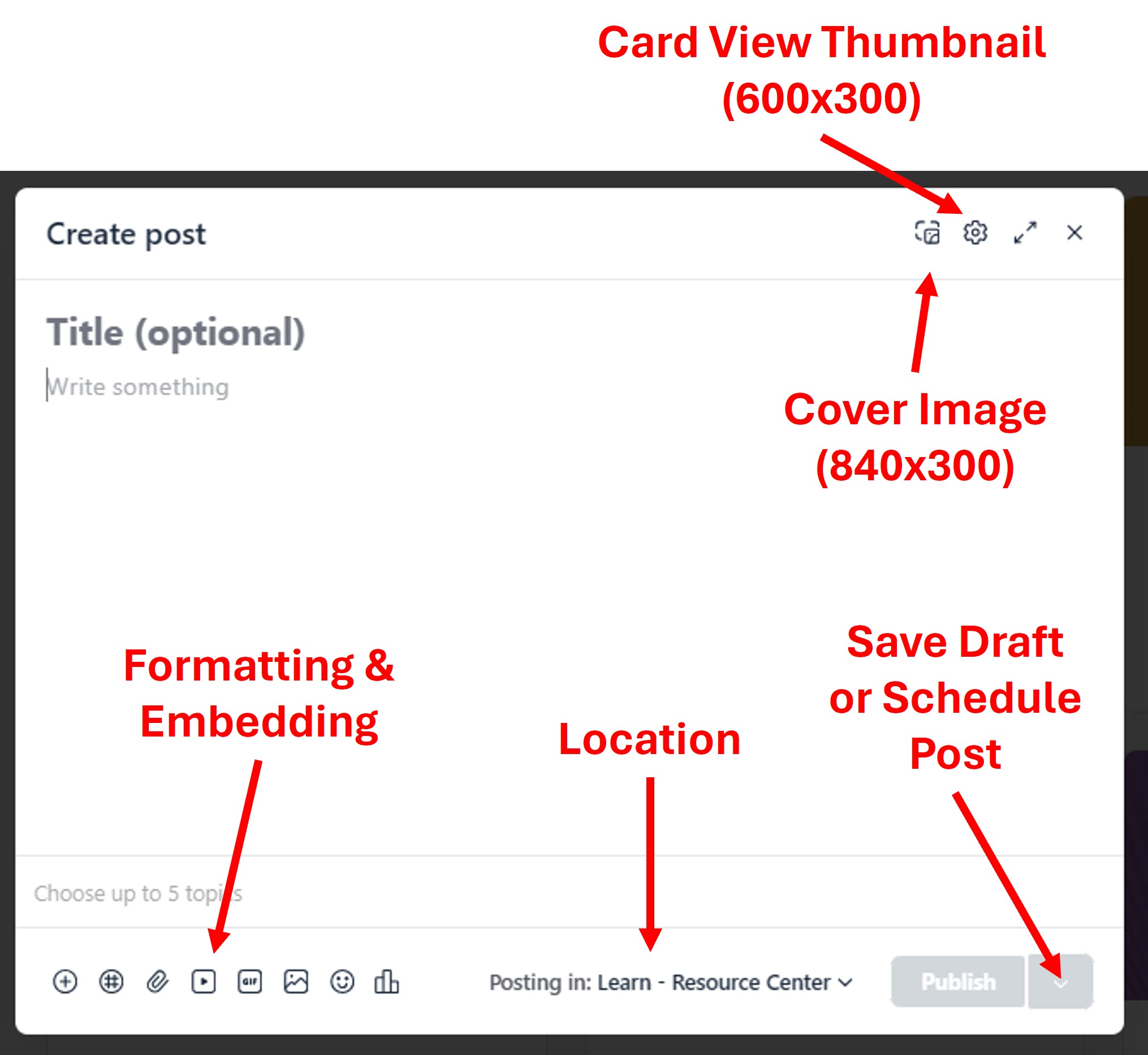
Quick tips for posting.
Start in the location you want to post and click the “New Post” blue button in the upper right corner. (We can always move posts from one location to another with the exception of image libraries (like Inspire) and Events.
Add a Title
Add Text and format and embed any media you want (images, videos, files etc)
Add a Cover Images (840 x 300) if you want it to show at the top of your post.
Add Card View Thumbnail (600x 300), if you don’t use a cover image. This is the image you see on the cards in the Resource Center as an example. This defaults to the cover image. If you don’t have a cover image it will be blank and you should add a card view thumbnail.
The Publish, save as Draft or Schedule. Some of our content contributors create a bunch of posts at once and schedule for future dates.